

PNG to DWG for screenshots, exported plans and graphics
PNG to DWG Converter: Screenshots and Exported Images to DWG
Convert PNG to DWG and get linework you can edit, not a picture stuck inside a drawing. AI redraws your screenshot, exported plan or transparent PNG, and you download an AutoCAD 2010 DWG that opens directly in AutoCAD 2010 and newer.
- Transparent backgrounds handled automatically
- Paste a screenshot straight from the clipboard
- DWG export +8 credits, refunded automatically if it fails
1. Upload an image
2. Choose a drawing type
DXF, SVG and PDF downloads are free
3. Preview and export
Examples
PNG to DWG Examples: A Logo and an Exported Render
PNGs are usually flat, clean graphics, which makes PNG to DWG the easiest conversion there is. Drag the slider to compare each PNG with its linework.
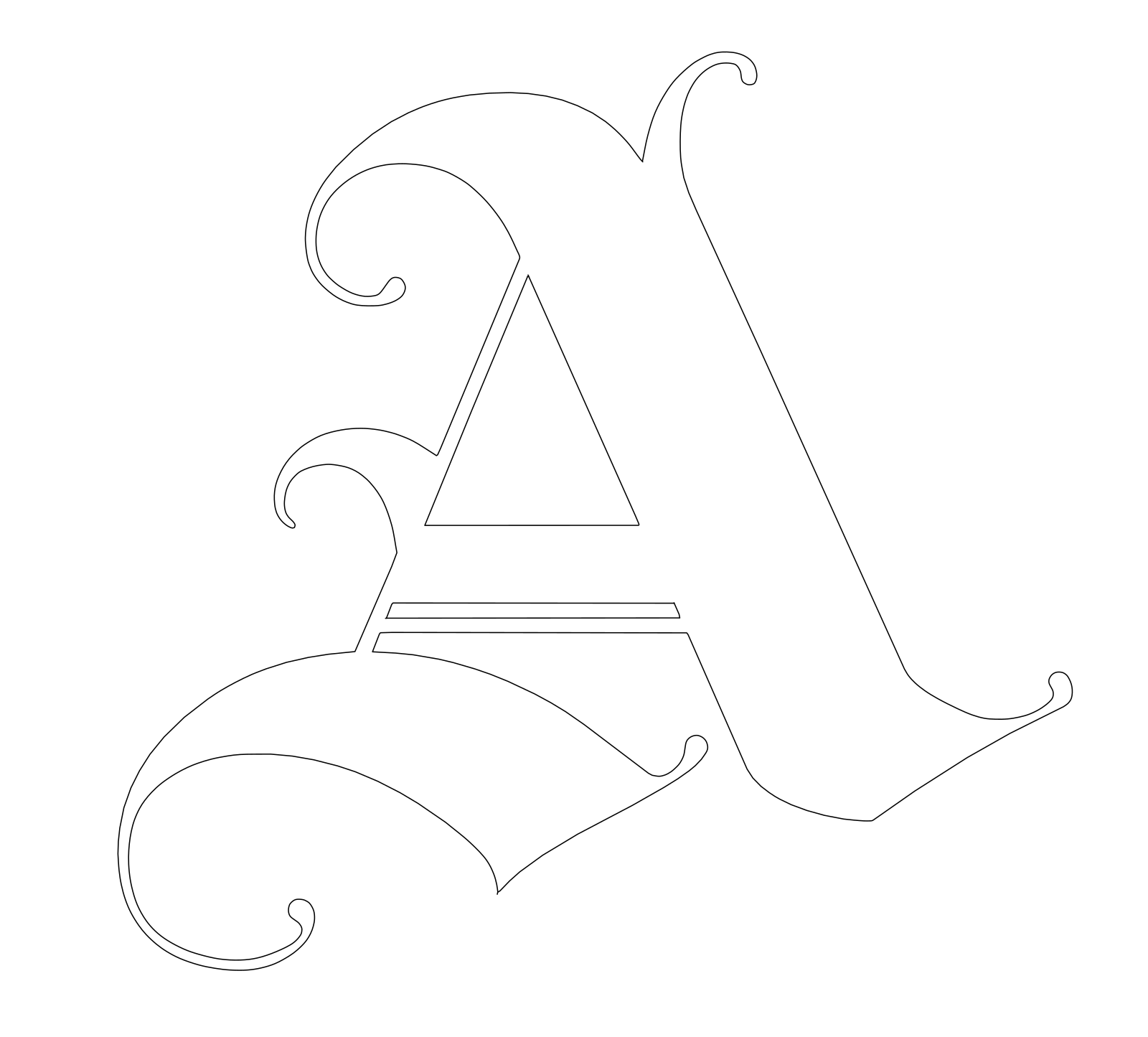

Logo letter to clean outlines
Drawing type: Line drawing
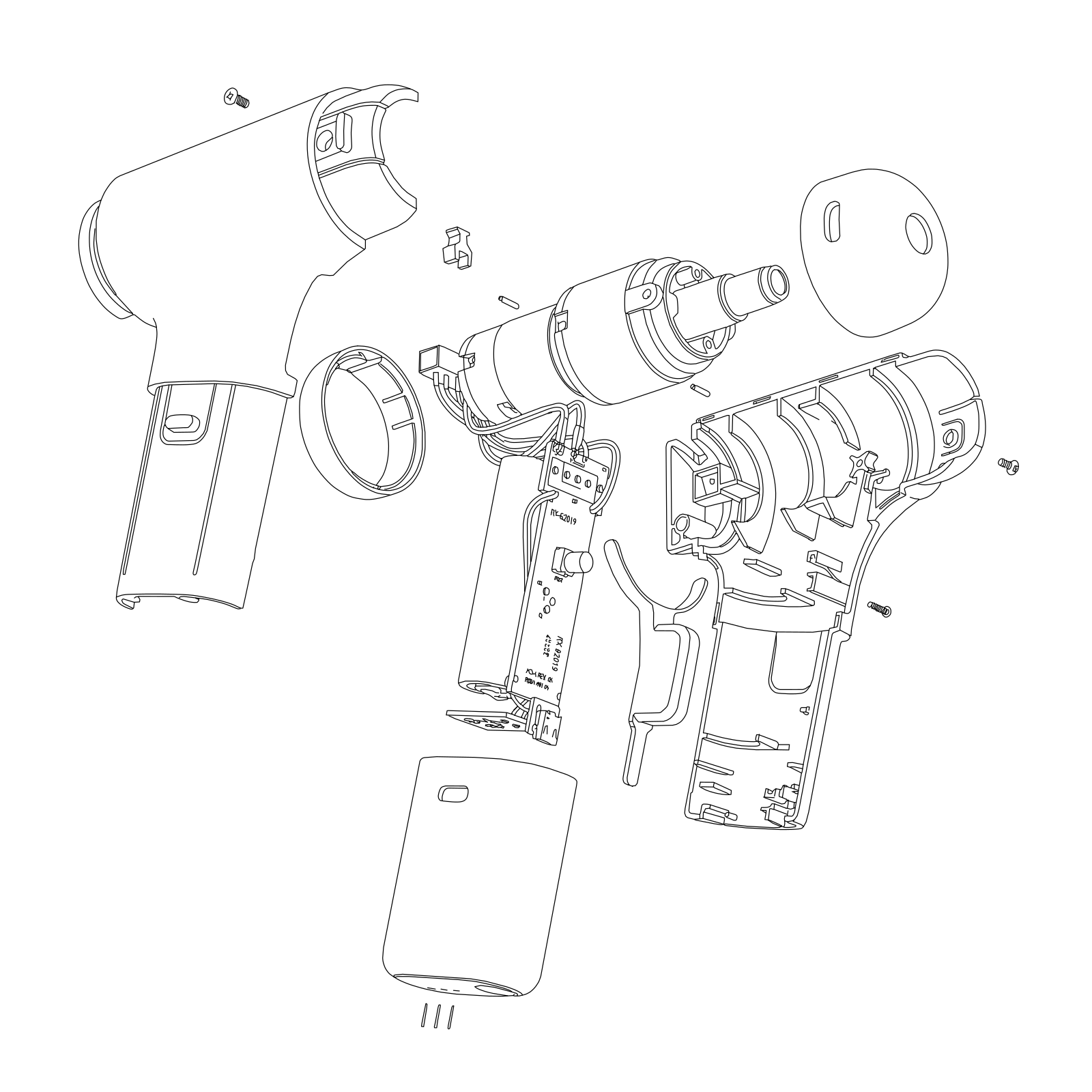
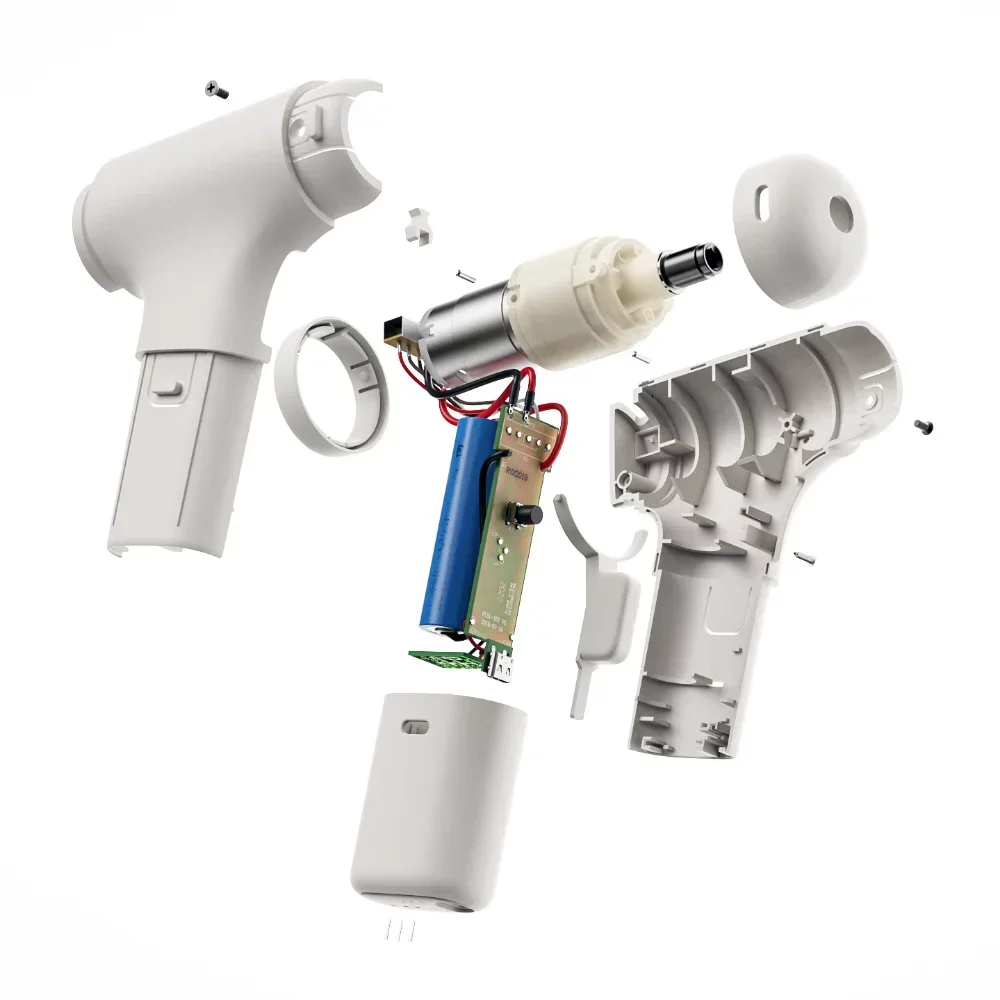
Exported product render to line drawing
Drawing type: Line drawing
Sample images. PNG to DWG results depend on the image; you can adjust line smoothing before you export.
How it works
How to Convert PNG to DWG in 3 Steps
Paste a screenshot or drop a PNG file — the PNG to DWG converter does the redrawing for you.
Step 1
Paste or upload your PNG
Press Ctrl+V (Cmd+V on a Mac) anywhere on the page to paste a screenshot, or drop a PNG file. Crop it to the drawing first so toolbars, cursors and window edges stay out.
Step 2
Choose a drawing type and convert
Use line drawing for logos and graphics, floor plan for exported plans and mechanical part for part views. AI turns the PNG into clean black lines that your browser traces into vectors.
Step 3
Set the real size and download DWG
Enter the length of the longest edge, pick single lines for editing or outlines for cutting, then download DWG. DXF, SVG and PDF are free.
PNG tips
Transparent PNGs, Screenshots and Resolution
A few details decide whether you convert PNG to DWG cleanly or end up with a messy drawing.
Transparent backgrounds
Transparent areas are filled with white before conversion, so only the artwork becomes lines. Dark artwork on a transparent background works best; place white artwork on a dark background first.
Screenshot at full size
Zoom in until the drawing fills your screen, then take the screenshot. About 1,500 to 2048 px on the long edge is ideal: tiny screenshots lose thin lines, and anything larger is scaled to 2048 px anyway.
Exported plans and PDF pages
For a plan exported as PNG or a screenshot of a PDF page, crop off the title block and legend if you only need the geometry. Text and dimensions are left out, so add them back in AutoCAD, where they stay editable.
DWG or DXF
DWG vs DXF: Which One for Your PNG?
One PNG to DWG conversion gives you both formats from the same drawing, and the DXF is free.
AutoCAD's native format, saved here as AutoCAD 2010 DWG.
Choose DWG when
- You are rebuilding a plan or detail you only have as a screenshot
- The drawing joins an AutoCAD project or drawing template
- Someone asked you for a DWG file specifically
+8 credits per export, refunded if it fails
The open exchange format, made free in your browser.
Choose DXF when
- You are cutting a logo or sign on a laser, vinyl cutter or CNC
- Your software reads DXF, as most CAD and cutting programs do
- You want to check the linework before exporting DWG
Free, as often as you like
Logos and graphics headed for a cutter? Try the PNG to DXF converter.
Working from photos rather than PNG graphics? Use the image to DXF converter.
Open any DXF in the free DXF file viewer to check it before you send it on.
PNG to DWG Converter FAQ
Short answers about PNG to DWG: transparent backgrounds, screenshots, exported plans and resolution.
Turn Your PNG into a DWG
Paste a screenshot or drop a PNG, and the PNG to DWG converter gives you clean, scaled linework for AutoCAD.
DWG export +8 credits · refunded automatically if it fails